Every design tool you are likely to open at work has added AI in the last few years, and each launch came with a keynote and a claim that design had changed. Strip out the announcements. Three real things arrived. Selection and masking got dramatically better, so cutting a subject out of a photograph stopped being a craft. Generation arrived inside the files you already had, on a layer beside your own work, which is why people used it whatever the quality of the pictures. And repetitive work became something you describe to the tool instead of scripting, which is the change nobody put in an announcement and the one that gives a small studio back the most hours. This lesson sorts the new features into those three kinds, with real examples from Figma, Canva and Photoshop, so that you can judge the next one yourself.
The first kind is assistive. An speeds up a step you were already doing, and it is most of what shipped. In Photoshop, Select Subject finds the person or product in a photograph with one click, where the pen tool used to take an hour on a difficult edge. Figma's Remove background does the same for a picture placed in a layout, and Canva has its own Background Remover beside Magic Grab, which lifts the subject out of a photo so you can move or resize it. None of these makes a decision for you. They take away the tracing, and the judgement of the edge stays with you.
The second kind is generative, which means it makes pixels, layouts or words that were not in the file before. Photoshop's Generative Fill is the best known. You select an area, type a prompt, and it returns a set of variations on a new that you can hide, swap or delete without touching the photograph underneath. Generative Expand grows the canvas and fills the new strip to match. Figma can make an image from a prompt, edit one or extend it past its edges, and Canva's Magic Media, Magic Expand and Magic Edit do the same jobs for its users. Since late 2025 Photoshop has also offered models from other companies, such as Google's Gemini and Black Forest Labs' FLUX, in the same Generative Fill box as Adobe's own Firefly. These are the features that get the headlines. They are also the least reliable.
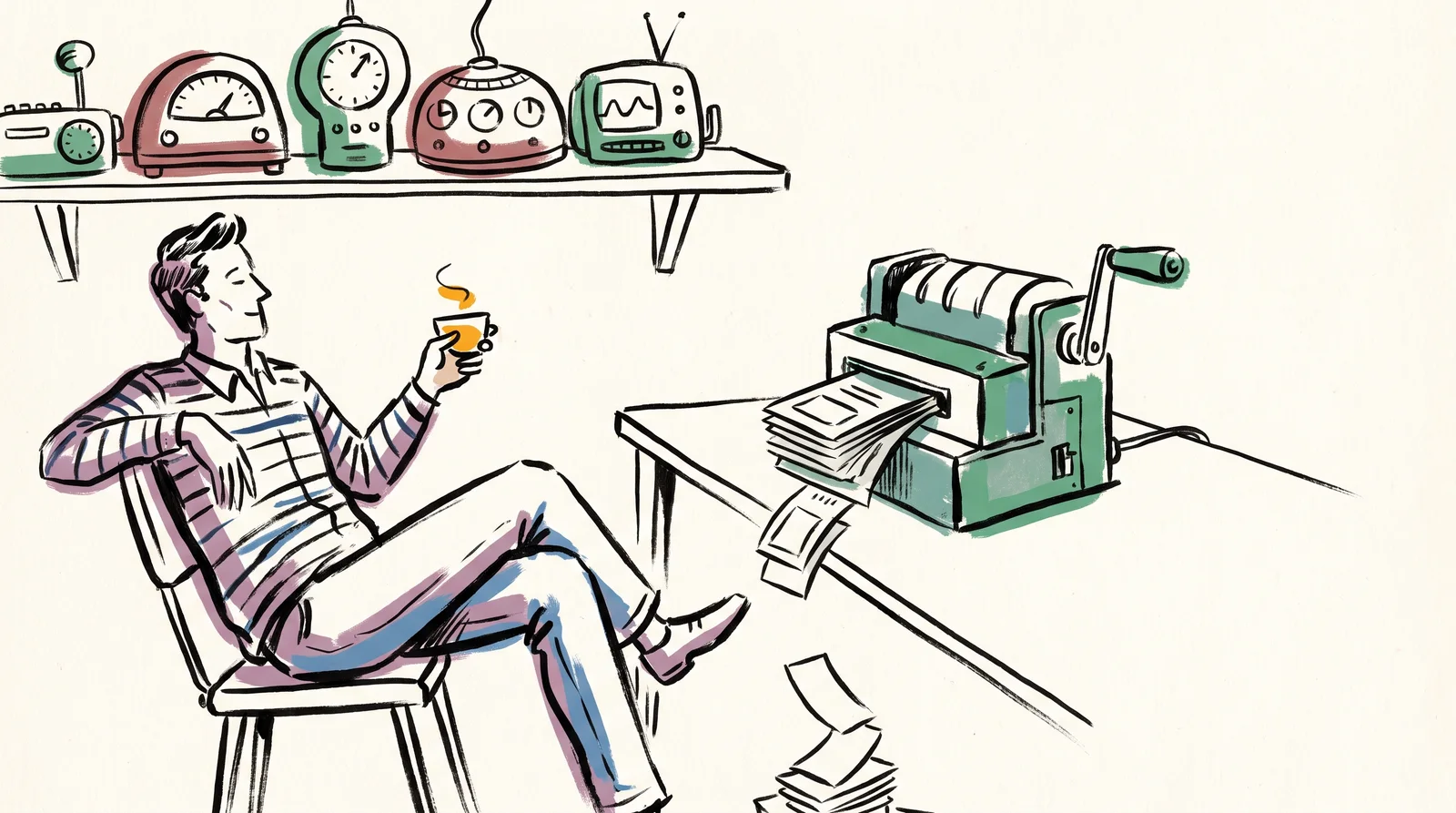
The third kind is , and it changes a working week while getting the least attention. Resizing forty assets, renaming layers to a convention and pulling copy from a spreadsheet into a template were never interesting work, and they used to eat whole days. Canva's Magic Switch turns one design into other sizes and formats, and it can translate the words into another language on the way. Figma's Rename layers names frames, groups, text and image layers from what they contain and where they sit, leaves alone anything you already named, and costs no credits. Since May 2026 Figma has also had an agent on the canvas, still in beta, that takes a plain instruction for a chore with several steps, such as making every layer name on a page follow one convention. You understand this kind of job completely. That makes the output easy to check.
A working designer sorts each new feature into one of those three boxes before deciding how far to trust it, because each box fails in its own way. Assistive tools fail at the edges, on hair, glass and fur. Generative tools fail by being average. They produce the most likely answer to your request, and the most likely answer can echo the designs the model learnt from. Automation fails quietly, when one file in forty is wrong and nobody opens that one. So the failure tells you the check. You zoom to 200 per cent along a mask, you name the decision a generated layout made for you and ask whether you agree with it, and you open a random sample of a batch instead of only the first file.
Every one of these features now runs on a meter. Figma gives a Full seat on its Professional plan 3,000 a month, and its price list charges 1 to 5 credits to remove a background and 2 to 16 to make or edit an image, depending on the model. Rename layers and AI search cost nothing. Adobe meters generation in generative credits as well, and counts the partner models in Photoshop as premium. In practice the three boxes sort the bill too, because tidying is often free while making new images is where an allowance goes. One setting deserves a look before any client file goes in. Since 15 August 2024, Figma has been allowed to use files from Starter and Professional teams to train its AI models unless an admin turns off, and turning it off leaves every AI feature working.
Side by side
Three kinds of feature, and how each one fails
| Assistive | Generative | Automation | |
|---|---|---|---|
| In Photoshop | Select Subject, and the Remove tool. | Generative Fill and Generative Expand, with a choice of Adobe's or partner models. | Little that is new. Actions and batch processing did this long before AI. |
| In Figma | Remove background, and Boost resolution. | Make an image, Expand, and First Draft for layouts. | Rename layers, and the agent for chores with several steps. |
| In Canva | Background Remover and Magic Grab. | Magic Media, Magic Expand and Magic Edit. | Magic Switch, which turns one design into other sizes, formats and languages. |
| The step it takes away | Tracing an edge by hand. | The blank page, or a patch of background. | The same small job done forty times. |
| How it goes wrong | Hair, glass and fur edges still need a manual pass. | Average, plausible output, which can echo the designs it was built from. | One file in forty is silently wrong, and nobody opens that one. |
| How to check it | Zoom to 200% along the edge before you trust the mask. | Name the decision it made for you, then decide whether you agree with it. | Open a random sample of the batch, never only the first file. |
| What it costs in Figma | 1 to 5 credits to remove a background. | 2 to 16 credits an image, depending on the model. | Nothing. Rename layers and AI search are free. |
| How long it lasts | Years. It improves quietly between releases. | Often months. Figma pulled Make Designs in July 2024, it came back as First Draft, and the agent is now taking its place. | Years, once it is part of the studio's routine. |
Feature names from Figma's help centre and from Adobe's and Canva's own pages, and credit prices from Figma's price list, all read on 26 September 2026. Figma's AI tools in Figma Design need a paid plan and a Full seat.
What to do it with
- PhotoshopSubscription
Still the place a picture is finished. Generative fill, expand and remove now sit on the same layer stack as everything else.
Bad at Generative fill matches its surroundings rather than obeying a brief, so it is a patching tool and not a directing one.
- FigmaFree tier, paid above it
The shared file where interface design happens: components, variables, prototypes and the handoff to code.
Bad at Its generative features make plausible screens rather than considered ones, and a plausible screen is the hardest kind to argue with in a review.
- CanvaFree tier, paid above it
Templates, brand kits and generation in one place, built so a non-designer can produce something acceptable.
Bad at Acceptable is the ceiling as well as the floor. Its templates are so widely used that a trained eye dates a deck in a second.
- FramerFree tier, paid above it
Designs and publishes a real website from a canvas, with generation for first drafts and copy.
Bad at Fast to a good-looking site and slow to an unusual one. Once you fight its layout model you have lost the time you saved.
- Premiere ProSubscription
The industry timeline, now with generative extend, object masking and text-based editing inside it.
Bad at Heavy, and the AI features arrive later here than in the tools built around them.
The words, in plain language
- Assistive feature
- Something that speeds up a step you were already doing, such as cutting out a subject. Most of what shipped.
- Generative feature
- Something that makes new pixels, layouts or words. The loudest kind and the least reliable.
- Automation
- A repetitive job done without you, such as resizing or renaming. Quietly the most valuable of the three.
- Generative layer
- In Photoshop, the separate layer that holds a Generative Fill result and its variations, so the photograph underneath is untouched.
- AI credits
- The allowance every AI action draws on. A Full seat on Figma's Professional plan gets 3,000 a month.
- Content training
- A setting that lets the maker train its models on your files. Check it before any client work goes in.
- Feature theatre
- A panel added because competitors added one. Every suite has several.
Why it matters
Judge a feature by whether it removes a step you resented. Generative Fill earns its place because patching a background by hand was slow and dull, and a clean patch is something you can check in a few seconds at full zoom. A panel that writes your headline or lays out your page is taking a different step, the one a client pays you for. Use the first kind freely. Treat the second with suspicion, because the time it saves comes out of your own judgement.
The most expensive mistake is starting from something that looks finished. A plausible layout is harder to argue with than a blank page, and a junior designer who starts from one spends the day adjusting somebody else's decisions instead of making their own. Figma learnt this in public in July 2024, when its first layout generator gave screens very like Apple's Weather app, a story the next lesson, AI in Figma, tells in full. Treat every generated screen as a draft holding decisions nobody made on purpose.
Two smaller mistakes cost real money. The first is trusting a batch because the first file looked right. A resize that suits a square post can push the price off the edge of a portrait story, and on a paid campaign that error keeps running until somebody notices it. The second is paying for novelty. The features that last are the boring ones, such as background removal, object selection, transcription and batch resizing, which are all still here and still improving, while layout generators keep being withdrawn and replaced, as Figma's has been twice. Spend on the tools that remove chores, and trial the loud ones on work with no deadline.
The rest of this module takes the tools one at a time, starting with Figma, then Canva and its brand kits, then Framer, where a designer publishes a real website, then Photoshop and Illustrator, and then the video editors, where most of the gains came from transcription and captions. Each gets the same three-box test. After that come plugins and how to vet one, design tokens, and the Model Context Protocol, which lets a coding agent read a Figma file as data instead of as a screenshot. The module ends by helping you choose a small set of tools that a two-person studio can learn properly and afford. Most of it is a side road from the campaign project. Two features touch it: Generative Fill can patch a chosen picture during Make and choose, and Canva's Magic Switch can resize a finished post for every place the campaign runs.
Elsewhere
- Type
- term
- Period
- ongoing